Wednesday, February 24, 2016

CAC, PIV, ADFS, LDAP oh my!


Challenge:

Needed an web application to authenticate against Active Directory on premises.  I need to know how to wire up a web application to AD.  Then I need to understand how to read those claims back on the web application I had designed.

Solution:

Went with the solution suggested by Vittorio over on his blog.  We have an on prem AD server which will be sufficient for our needs.  The guide he wrote was straight forward and worked.  The only issues I had was I need to coordinate with our AD team.  Once they understood, they set up the AD Relying Party Trusts between my app and our AD server. 

We chose to use the MVC 5 templates in VS 2013.  The wizard allows you to choose from 4 types of authentication.  
 
I did look at the LDAP option.  It would work but would require a username and password in the call too
 
DirectoryEntry de = new DirectoryEntry ("LDAP://novellBox.sample.com","admin","password",AuthenticationTypes.None);

This is not something I want to be embedding in the code.  I much prefer the using System.DirectoryServices.AccountManagement.  Then all you need is PrincipalContext. 

Source:

  1. http://www.cloudidentity.com/blog/2014/02/12/use-the-on-premises-organizational-authentication-option-adfs-with-asp-net-in-visual-studio-2013/
  2. https://msdn.microsoft.com/en-us/library/ff649227.aspx (Dated but still lots of goodness)
  3. http://forums.asp.net/t/1356598.aspx (DOD guys asking questions)
  4. http://stackoverflow.com/questions/1437250/connecting-to-ldap-from-c-sharp-using-directoryservices  
  5. https://msdn.microsoft.com/en-us/library/87tye19w(v=vs.110).aspx (DirectoryEntry)
  6. http://goodworkaround.com/node/68(Web Forms)
  7. http://www.schiffhauer.com/mvc-5-and-active-directory-authentication/(MVC 5)
  8. https://github.com/aspnet/Identity/issues/387 (MVC 5 and AD)


Attempted to access an unloaded appdomain. (Exception from HRESULT: 0x80131014)

Problem:

Using MVC 5 application and the namespace System.DirectoryServices.AccountManagement.
I kept getting this error intermittently running my app.  Looks like an issue in ADSI which is a bit buggy. 

Solution:

Tofumaster's suggestion of adding the domain string to the principal context seems to have done the trick for me. 

instead of

PrincipalContext ctx = new PrincipalContext(ContextType.Domain);

do this

PrincipalContext ctx = new PrincipalContext(ContextType.Domain,"MyDomain");


Source:

  1. http://stackoverflow.com/questions/6605666/querying-active-directory-from-mvc-result-in-attempted-to-access-an-unloaded-ap
  2. http://forums.asp.net/t/1697428.aspx?Querying+Active+Directory+from+MVC+result+in+Attempted+to+access+an+unloaded+appdomain+Exception+from+HRESULT+0x80131014+
  3. http://stackoverflow.com/questions/5895128/attempted-to-access-an-unloaded-appdomain-when-using-system-directoryservices

Wednesday, February 17, 2016

C# Argument Out of Range DateTime

Problem:

Had a customer contact about 3rd party solution running on our IIS server.  Customer support for software was expired and they were desperate for help.  I looked at the issue which was when the web page (asp.net) loaded user received an argument out of range error.  The page had been working previously.  The error listed the issue as no date time supported for hours, minutes, seconds constructor error.

Solution:

I took a look at the code behind and found the following constructor

var endTime = new DateTime(today.Year, today.Month, today.Day, 8 + course.LengthInHours, 0, 0).ToLocalTime(timeZone);

The declaration looks syntactically correct.  The error message made me key in on the last 3 fields, hours, minutes and seconds.  I typically don't go to that level of detail when using the DateTime namespace.  But this developer had done it so I took all a look at the MSDN site for the DateTime constructor (https://msdn.microsoft.com/en-us/library/272ba130%28v=vs.110%29.aspx)

It became pretty obvious where the issue was the hour declaration was a calculated time 8 plus some value stored in a database.  I ran the test and sure enough the error condition had an hour count of 32 (24+8).   This definitely was the issue as API says:

hour
Type: System.Int32 - The hours (0 through 23).
The error was due to the value in the object being larger than 24.  The developer had assumed that the value would always be a number under 24.  The new solution which fixes the error uses the AddHours method vice trying to initialize the DateTime in the constructor.

 var tempEndTime = DateTime.Today;
 //Default is 12 AM each day.  Add 8 hours to get to the start of the workday 8 AM.
 tempEndTime = tempEndTime.AddHours(8);
 //Now add the length of the class to estimate end time of class
 if(course.LengthInHours>0)
     tempEndTime = tempEndTime.AddHours(course.LengthInHours);
 var endTime = tempEndTime.ToLocalTime(timeZone);


Wednesday, February 10, 2016

SQL table count in your schema

Needed to get a count on a database that I am reviewing.  This query really helped.


use YourInstanceName

select TABLE_NAME from INFORMATION_SCHEMA.TABLES
where TABLE_TYPE = 'BASE TABLE'
and TABLE_NAME not like '$Foo%'
order by TABLE_NAME

LINQ to SQL equivalent of select top


Problem

I wanted to get the top 10 rows from a linq query.  I was not sure what the LINQ syntax was.

Solution


var q = from m in MyTable.Take(10)  
select m

or 


if you'd like to get the items from 30 to 60
 
var foo = (From t In MyTable Select t.Foo).Skip(30).Take(30);


Thursday, January 21, 2016

How to Track and Audit Registry Changes

Problem:


Trying to find out what changed a registry key.  I needed to use event viewer to sort through the logs.

Solution:

Enable Registry Access Audit Security (SACL)

System Access Control Lists (SACL) determines registry access events for the particular Registry scope should generated or not. So that, you should enable SACL for the single registry value or the root registry scope which you want monitor or track change events.

1. Open Registry editor by running the command regedit

 2. Right-click on the Registry key which you want to configure audit events, and click Permissions.


How to Track Registry Access

 3. In Security window, click Advanced button.


How to Track Registry Access

 4. Navigate to the tab Auditing, and click Add button.


Find Registry Changes

 5. Select the account Everyone, and check Successful and Failed Audit options which are you want to audit, click the button OK, and click Apply. 
Track and Find Registry Changes


Registry Change Auditing Event IDs


Once you configured above two settings, now you can see the actual events, to view the registry change events, follow the below steps.

1. Open the Run window, type the command eventvwr.msc, and click OK.


2. You can see the Event Viewer Management Console, expand the tree node Windows Logs and select Security.
Track and Find Registry Changes, Registry Delete, Registry Modification

3. Now, you can see lot of events in right-hand side window, but to track only registry access and change, we need to check only these event ids, 4656, 4657, 4660 and 4663. To filter only these four events, right-click on the Security node and click Filter Current Log.
4. Type the event ids 4656, 4657, 4660 and 4663 as comma separated values and click.


Track and Find Registry Changes, Registry Delete, Registry Modification

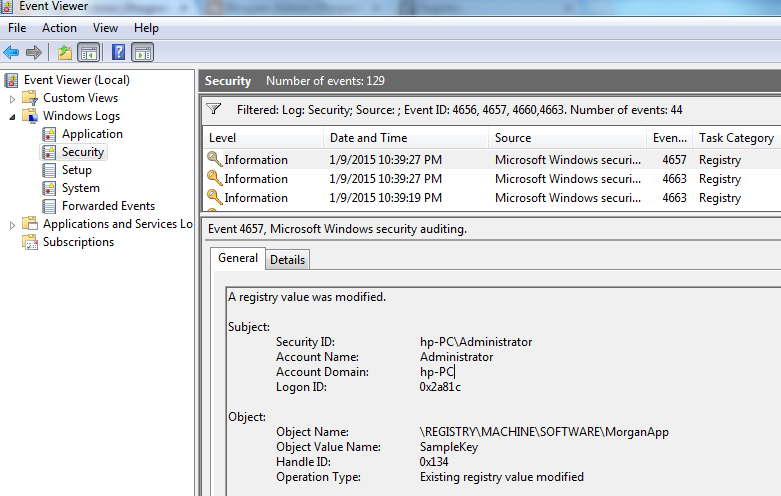
5. Now, result window lists only registry access events, you can double-click on any event and check what type action made on the particular registry key.


Track and Find Registry Changes, Registry Delete, Registry Modification


These event ids deal with changes to the registry.  The event I am interested in is 4657 which tells me when a registry key was changed.


4656: This is the first event logged when an user attempts to access registry key, this event gives information about what type of access was requested by the user and it will not give info about what type access actually made by user (which is given by the event id 4663).

4657 - A registry value was modified.

4660 - An registry key or value was deleted or removed.
4663: This event gives the info of what type actual operation is done by user on a file. it tells whether the registry key or registry value was created, modified, deleted, or it simply accessed,


Source:


1.)http://www.morgantechspace.com/2015/01/how-to-track-registry-changes-in-windows.html

Unable to make the session state request to the session state server.

Problem:

This is an expansion of a post from Dec 15.


Solution:

These steps need to be checked to ensure that the state service is running
1.) Ensure HKEY_LOCAL_MACHINE\SYSTEM\CurrentControlSet\Services\aspnet_state\Parameters\AllowRemoteConnection to 1
2.)Ensure that ASP.Net service is set to start automatically.
3.)Ensure that ASP.Net service is running.
4.)If you reset the registry key then restart the

ASP.net state service after you change the parameter.

5.)Check the web.config for the website locate the following attribute

<sessionState mode="StateServer" stateConnectionString="tcpip=127.0.0.1:42424" sqlConnectionString="data source=127.0.0.1;Trusted_Connection=yes" cookieless="false" timeout="30" />

6.)Ensure that the port specified in the stateConnectionString, default is 42424 matches the port set in the registry key HKEY_LOCAL_MACHINE\SYSTEM\CurrentControlSet\Services\aspnet_state\Parameters\Port 42424
7.)Ensure that Firewall is not blocking port 42424.


Source:

1.) http://fetchmytip.blogspot.com/2015/12/iis-85-unable-to-make-session-state.html
2.)http://forums.asp.net/t/1222433.aspx?Unable+to+make+the+session+state+request+to+the+session+state+server+